A Blue Screen of Death (BSOD) is one of the most frustrating Windows errors. It appears suddenly, forces your PC to restart, and often leaves users worried about data loss or hardware failure. This guide explains what a BSOD error is, why it happens, and how to fix it step by step.
What is a BSOD Error?
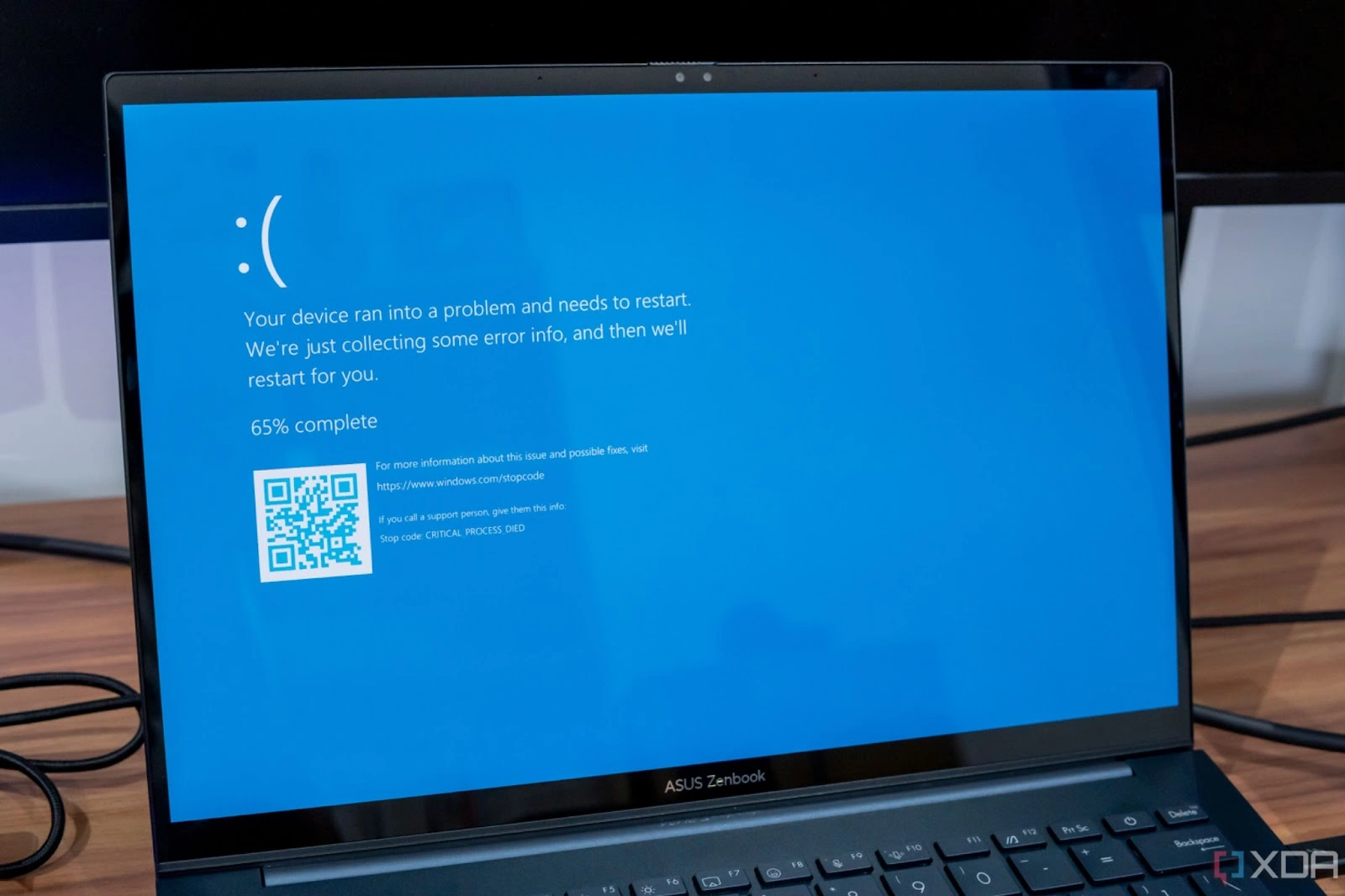
A BSOD error, also known as a stop error or bug check, occurs when Windows encounters a critical system error that it cannot handle. The screen turns blue, displaying an error code and a message, such as:
- CRITICAL_PROCESS_DIED
- SYSTEM_THREAD_EXCEPTION_NOT_HANDLED
- IRQL_NOT_LESS_OR_EQUAL
- PAGE_FAULT_IN_NONPAGED_AREA
Common Blue Screen Error Codes Explained
CRITICAL_PROCESS_DIED
Occurs when an essential Windows process stops unexpectedly, often due to corrupted files or faulty drivers.
SYSTEM_THREAD_EXCEPTION_NOT_HANDLED
This stop code usually points to a driver issue. It happens when a system thread generates an error that Windows cannot catch or resolve.
IRQL_NOT_LESS_OR_EQUAL
This BSOD error is commonly related to memory problems or incompatible drivers attempting to access restricted system memory..
PAGE_FAULT_IN_NONPAGED_AREA
This error indicates that Windows tried to access invalid memory. Faulty RAM, corrupted drivers, or antivirus software are common causes.
If you see the same stop code repeatedly, it usually points to a specific driver or hardware component that needs attention..
Common Causes of BSOD Errors
BSOD errors can be caused by a variety of hardware, software, or driver-related issues. Here are the most common causes:
- Faulty or Incompatible Drivers: Outdated, corrupt, or incompatible drivers are a leading cause of BSODs.
- Hardware Issues: Faulty RAM, a failing hard drive, overheating components, or other hardware problems can trigger BSODs.
- Software Conflicts: Incompatible or poorly coded software can cause conflicts leading to BSODs.
- Corrupt System Files: If critical Windows system files are damaged or missing, your system may crash.
- Overheating: Excessive heat due to poor ventilation or a malfunctioning cooling system can cause your computer to crash.
- Malware or Viruses: Malicious software can corrupt system files or interfere with system processes, leading to BSODs.
- Windows Updates: Sometimes, a faulty Windows update can introduce bugs that cause BSODs.
How to Fix BSOD Errors
- Note the Error Code: When the BSOD appears, note the error code and error message.
- Restart Your Computer: Sometimes, a BSOD is a one-time glitch.
- Boot into Safe Mode: If your computer keeps crashing, boot into Safe Mode to troubleshoot the issue.
- Update or Roll Back Drivers: Check for outdated or incompatible drivers and update or roll them back.
- Run a System File Checker (SFC) Scan: Use the SFC tool to scan and repair corrupt system files.
- Check for Windows Updates: Install any available Windows updates.
- Scan for Malware: Use a trusted antivirus program to scan your system for malware.
- Check for Hardware Issues: Test your RAM and hard drive for issues.
- Uninstall Problematic Software: If the BSOD started after installing new software, uninstall it.
- Perform a System Restore: Restore your system to a previous state.
- Reset or Reinstall Windows: If all else fails, reset or reinstall Windows.
Still Seeing Blue Screen Errors?
A technician can safely diagnose and fix BSOD problems remotely while you watch.
Fix My Computer RemotelyFrequently Asked Questions
A BSOD itself does not damage your computer, but it indicates an underlying issue. If ignored, the root problem such as overheating or failing hardware may cause permanent damage.
Repeated BSODs usually point to driver problems, failing hardware, corrupted system files, or incompatible software installed on your system.
Yes, malware or viruses can corrupt system files or drivers, leading to BSOD errors. Running a full antivirus scan is strongly recommended.
Resetting Windows should be considered a last resort. In many cases, updating drivers, fixing system files, or removing problematic software resolves the issue.
Yes. Most BSOD issues can be resolved remotely.